



To help identify the file transfer method and documentation you should use, determine the scenario below that best matches your use case:
- If you are transferring small amounts of data (less than 1 GB), there are multiple file transfer protocols and options that should work well. See Data Transfer to and from Local Computers.
- If you are moving data to and from cloud resources, see Rclone.
- For most other data transfer needs, we recommend that you use Globus.
- If you would like to transfer data to and from your local computer, see Globus Connect Personal.
- If you are on a SCINet café machine at a SCINet-X location, see Data Transfer via Café Machine.
- If you would like to transfer data between SCINet infrastructure and a non-SCINet Globus endpoint, please go directly to Globus Data Transfer.
- If you have to transfer very large amounts of data and network speed at your location is slow, please submit a request to the Virtual Research Support Core (VRSC) to ingress data from a hard drive as described in Large Data Transfer by Shipping External Drives.
Figure 1 below depicts a recommended workflow for managing data across SCINet storage locations. See the User Guide section on SCINet Storage for more information on available storage locations and their intended use.
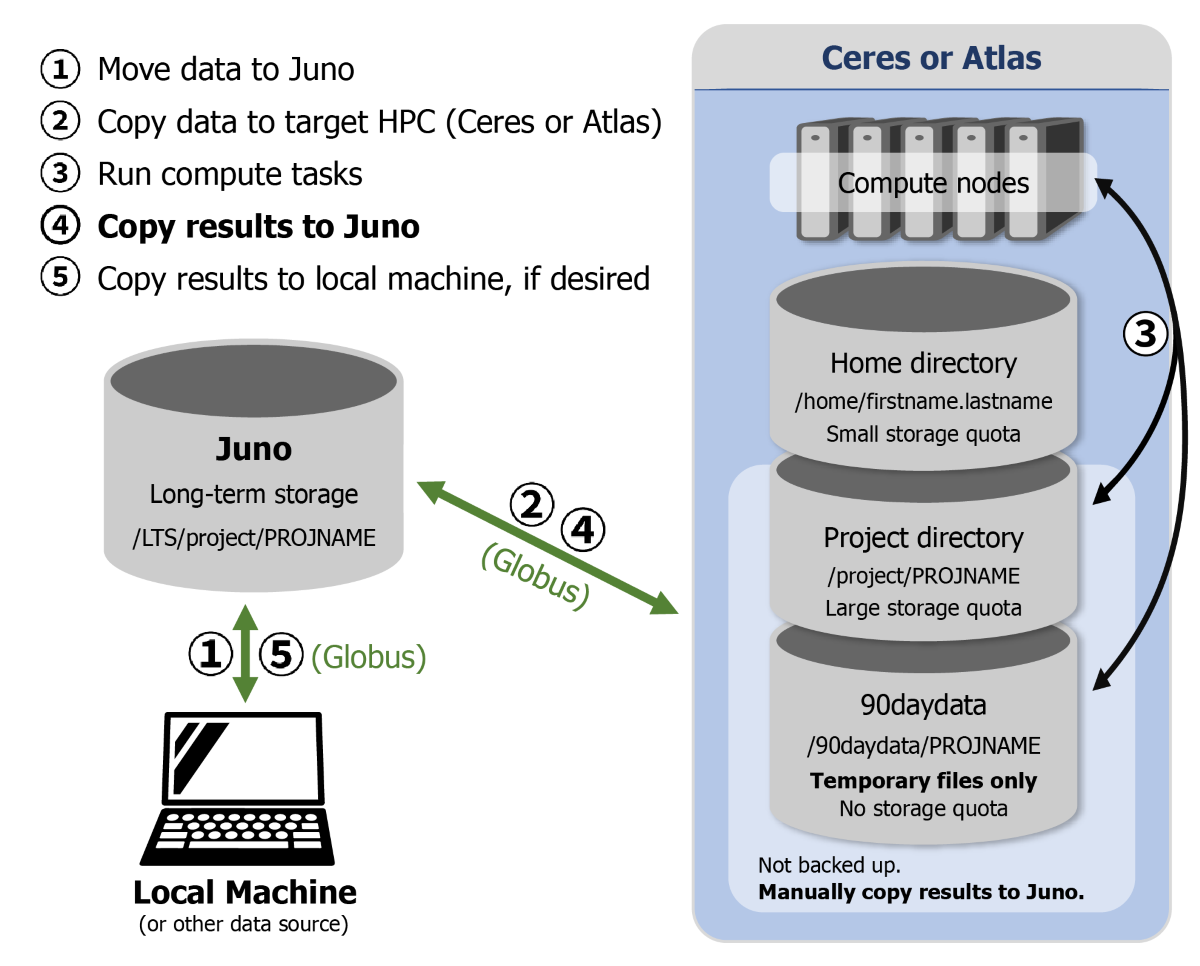 Figure 1. Recommended procedures for managing data on SCINet HPC infrastructure using Globus.
- Move data to Juno
- Copy data to target HPC (Ceres or Atlas)
- Run compute tasks
- Copy Results to Juno
- Copy results to local computer, if desired
-
Data Transfer to and from Local Computers
To transfer files between your local computer and SCINet storage locations, there are multiple methods available:
- For smaller (e.g., less than 1 GB) data transfers:
- Open OnDemand (recommended), a web-based graphical interface.
scporrsync, commands to run from your local computer.- Cyberduck, a graphical user interface on your local computer.
- For larger (e.g., greater than 1 GB) data transfers:
- Globus Connect Personal, an application on your local computer that allows you to transfer files via Globus, which provides a web-based interface.
- For smaller (e.g., less than 1 GB) data transfers:
-
Rclone: Moving Data to and from Cloud Resources
Rclone is already installed on all SCINet data transfer and compute nodes. Please do not perform
rclonetransfers from the login node. Attempting to do so can result in errors.
To learn more aboutrclone, see https://rclone.org. -
Globus Data Transfer
Globus is the recommended method for transferring data to, from, or among Ceres, Atlas, and Juno. It provides faster data transfer speeds compared to
scp, has a graphical interface, and does not require authentication for every file transfer. To transfer data to or from a local computer, users will need to install Globus Connect Personal, which does not require admin privileges. -
Data Transfer via Café Machine
If you are at an ARS research location with a SCINet-X connection, you have access to a SCINet café machine - a dedicated computer for high-speed data transfer to and from SCINet’s supercomputers and long-term storage system.
-
Large Data Transfer by Shipping External Drives
If you need to transfer large amounts of data (typically greater than 50 GB) to SCINet storage but are constrained by slow networking speeds, you can ship external drives (not thumb drives) containing your data to the VRSC in Ames, Iowa. The VRSC will then upload your data directly to SCINet storage and put it in a project directory that you specify.